Using Azure AI Foundry behind Azure API Management with Databricks Model Serving

A few months ago, I wrote a blog post about using Azure API Management with Databricks Model Serving endpoints. It struck a chord with a lot of people using Databricks on Azure specifically, because more and more people and organizations are trying their damndest to wrangle all the APIs they use and/or deploy themselves. Recently, I got an email from someone who read it and asked a really good question:
“Hey Drew, loved the blog post! While I found it helpful, my company is doing something a little different: we want to use Databricks Model Serving endpoints to host our RAG and Mosaic Agent Framework projects, but our OpenAI team wants to put Azure API Management in front of one (or probably both) of these services. Does that actually work? We tried to set up the Databricks model serving endpoints to the the API Management Gateway with OpenAI, but it’s not working. Microsoft Support hasn’t been able to help us, so I figured I would give you a shout to see if you can give us any pointers?”
And boy, did I.
Now that we got it working, I figured it’d be a good time to supplement the original post with this one that answers the question posed to me, because there’s a couple things you want to watch out for. So strap in as we build out a solution that puts Azure API Management (APIM) in front of both Databricks and OpenAI in Azure, and how it all works.
First, a reminder
If you haven’t read the previous blog post, I recommend you do that first. It highlights what mature organizations want APIM for and why it’s important to them for the APIs they use, and how you can put your Databricks model serving endpoints into that ecosystem. However, what if you are using the Azure API Management (APIM) gateway to front your Azure OpenAI endpoints as well?
Let’s take a look at a couple rough diagrams. Without APIM in the mix anywhere, your architecture basically resembles this:

Notice how users (and apps and services) directly interface with the URL of the Databricks workspace URLs which is what the model serving endpoints are tied to. Then, depending on what code runs and where the requests are either sent from the Databricks Web App or compute clusters to the AI Foundry endpoints of the OpenAI models you’ve deployed.
Now let’s add APIM to just the Databricks side of the house, as we did in the last blog post:

By adding the APIM service in front of Databricks, users and apps and services don’t need access to Databricks directly; APIM can authenticate to the Databricks side and users instead need to be able to communicate and authenticate to the API gateway in APIM. Communication from Datagricks to your deployed models on the AI Foundry side doesn’t change, though.
And finally, let’s add in APIM in front of OpenAI as well:

This is what we want to build: we want our APIM gateway to handle all the communication, from all the users, apps, and services AND our calls from Databricks to our deployed models. By organizing our different endpoints into products in APIM, we can have different methods of authentication and authorization, as well as policies in place to keep our API endpoints locked down and governed a little easier.
Some things to keep in mind that might not initially jump out at you in the diagrams, in case it wasn’t clear:
- Databricks Model Serving endpoints use the serverless compute engine of Databricks, which may lead you to believe that means your requests aren’t coming from YOUR Azure tenant, it’s coming from the Databricks data plane. But most of the time, especially with things like the Playground, the requests are actually coming from the Databricks control (web app) plane. Keep this in the back of your mind for now, we’ll cover it again later in this post.
- Private endpoints are a thing, so when you’re configuring your solution you may or may not need to set them up or consider how your services are going to talk to APIM.
- The whole goal of APIM is to provide a gateway that is a “front door” to your APIs, and instead of having your services talk to each other with credentials, you actually provide your credentials to APIM which then uses different credentials to talk the back end APIs that they are the front door for. This is a good thing, because you can use different authentication for the gateway than your backend APIs.
Got all that? Great. Let’s do some good.
You must be this tall to ride
So first things first, let’s get some pre-requisites set up. For this demonstration, I have already deployed an Azure AI Foundry instance and within it, I deployed a gpt-4.1-mini model within it:

When you create the deployment, note the URL there: if we wanted to call the model, we’d normally want to use that URL. Except we don’t here, because we want our traffic to go through the APIM Gateway. To do that, we need to get an APIM instance deployed in Azure. For this demo I’m using the Developer tier as it gives me almost everything I need to do this “right”.
Once you get your APIM instance deployed, importing your endpoint specifications from AI Foundry is actually built into the product, and it makes it pretty simple: you add a new API, select Foundry, then pick your instance and it will build all the endpoints for you:
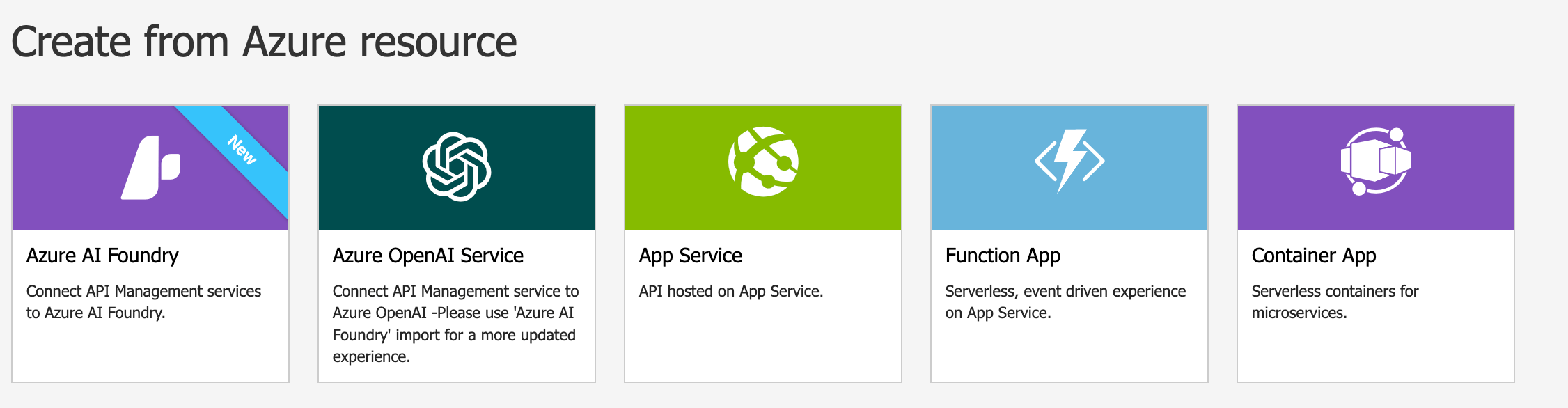

The other nice thing about this feature is that is also takes care of adding the System Managed Identity of your APIM instance to the Foundry resource so the calls coming form the APIM API Gateway will authenticate with it instead of a key. Neat!

Now, it’s time to test your APIM gateway to make sure it can reach the AI Foundry resource. In your APIM API list, filter by “chat” and select the API for “Creates a completion for the chat message” (or, the relevant endpoint for your model that would be a good test). All you have to do is provide the deployment name in AI Foundry that you created in the parameter, and click “Trace” to see what’s happening. If everything works, you should get a “200: OK” response and a message back from the model:

So far, so good. Now comes the hard part: networking.
Locking it down
So far, everything works pretty nicely, but that’s because we haven’t introduced any networking restrictions, such as making our Azure AI Foundry resource only available via private endpoint and/or Azure Backend via VNET whitelisting, or, putting restrictions in front of our APIM service.
Heads up: Azure API Management has a lot of really powerful and complex networking options, a lot of which depend on which tier of the service you’re using. For this blog post, I’m using the Development Tier because I didn’t want this blog post to cost me upwards of $2000. The front- and back-end networking options you choose will ultimately be an outcome of which tier of service you’re using. Just remember: your goal should be to make certain the APIM service (or the APIs that are defined within it) are restricted to only traffic you approve of and trust, and that calls coming from the API Gateway to your back-end service should be treated the same. Take the time to make sure you understand what options you have for your current (or upcoming deployment).
First, let’s configure our APIM instance. For my setup, I’m going to deploy my APIM instance in a Virtual Network. This involves carving out a subnet that I want it to use for communication, setting up the appropriate Network Security Group rules, and then configuring my service to use it:

Once that is deployed, we can now set up our Azure AI Foundry instance to only accept traffic from either our specific subnet or, we can deploy a private endpoint for our service into that virtual network. For brevity, I’ll choose the subnet option (and mostly because I still want to whitelist my home IP address so I can access the service for other reasons):

This would be a good time to repeat the test above: go back to APIM, select the same endpoint as before, and make sure everything is still good. If you get any errors, just double check you’ve got solid connectivity for your virtual networks and DNS resolution (if you’re using private endpoints).
Now for the final part: getting Databricks to use your APIM-backed APIs for model serving.
You don’t have to be cool to rule my world
With Databricks Mosaic Model Serving, you can set up external models that can be used in place of the built-in foundational models on the platform. There’s native support for things like Azure OpenAI endpoints (including those in AI Foundry). Since we’re using APIM we need to use the Custom Model Endpoint solution:

Most of this is plug and play; essentially, you’re going to get your APIM base URL (in my case, the https://apimdublindata.azure-api.net/dubdatafoundry/openai and then the endpoint info that we want to use. Since this is a chat completion scenario, I am using the same chat completion endpoint I tested above. Next, we need to provide a way for the call to authenticate to our API service. At the time of this post, the only available options are through API Key Authentication or traditional Bearer authentication. For APIM, we want to use API Key Authentication, and use the correct key/value pair. So where do we get these?
Switching back to APIM for a moment, find the parent group of all the APIs you imported, and then switch the settings tab and look for “Subcription”:

The “Header Name” value is what value APIM will expect for the key. So where do we get the key? In APIM, the concept of a “subscription” is tied to usage patterns; you may have different applications and audiences that want to use your APIs. Subscriptions provide ways to layer in security and other features. You can set up specific access to specific subscriptions, then generate the keys used by the calling application or service to access it. Back in APIM again, if you switch to the Subscriptions blade you can create new subscriptions, and view and regenerate keys. We’ll grab one of these keys, and put the value into the Databricks UI for the key value (or you can leverage a Databricks Secret Scope value too).
Once that’s done, all that’s left to do is test it out. Let’s take our new model serving endpoint over to the Playground and ask it a question:

At this point, if you get any errors, check the following:
- Check to make sure the correct
api-keyheader is used, matching what is set in APIM - Check your URL construction. In the APIM test, the
deployment-idparameter helps construct the test call. Since we know which model we want to use, put in the complete URL that “hard codes” the deployment
I am whatever you say I am
So, are we done? Well, not quite: while we’ve been able to put some more private networking between APIM and your AI Model, we still have the question about how to make it so Databricks can use the endpoint securely. This is a bit of a challenge: the current (at the time of this post) limitation is that private endpoint support does exist, but only for custom models running on your compute plane (docs). When you use a model serving endpoint that points to an external model, the call actually comes from the Databricks control plane. And while you can leverage private endpoints for Network Connectivity Configurations, they don’t apply to these calls.
Chances are, you want to control the ingress to your APIM Gateway too, so you’re left with the question of how to best do this? For my use case, since I’m on the Development tier, the most straightforward way is to use policies in APIM to only allow access from whitelisted IPs. But which IPs? Fortunately, the list is known. For Azure Databricks at least, the docs list out what the outbound IP ranges are, per region, of the Databricks control plane. The first step is finding out what they are, and you can find them here: https://learn.microsoft.com/en-us/azure/databricks/resources/ip-domain-region#outbound
My Azure Databricks workspaces are all in the East US region of Azure, so I need to get all those ranges whitelisted; the calls can come from any of them. Once you locate them, you can head back into APIM and pull up the parent grouping of APIs again, and this time, we’re going to apply an inbound policy to only allow traffic from these IPs. That’s one of the neat things about policies: you can apply them to individual API endpoints, or the entire group of them:
All we have to do is add the ip-filter policy under Inbound Processing for API Management to either accept or reject the traffic. The one painful bit here is that for IP ranges, CIDR notation isn’t allowed; you have to really specify first and last IPs. If you’re not the kind of person who memorizes CIDR conversions, calculators exist.
In my example, because I am in East US, here’s what my policy looks like:
<ip-filter action="allow">
    <address-range from="4.156.7.48" to="4.156.7.79" />
    <address-range from="20.42.74.128" to="20.42.74.191" />
    <address-range from="68.220.90.240" to="68.220.90.255" />
    <address-range from="20.36.151.208" to="20.36.151.223" />
    <address-range from="20.65.4.240" to="20.65.4.255" />
    <address-range from="40.70.144.208" to="40.70.144.223" />
    <address-range from="57.151.106.192" to="57.151.106.199" />
    <address-range from="57.151.124.96" to="57.151.124.103" />
    <address-range from="57.151.82.88" to="57.151.82.95" />
    <address-range from="74.249.107.232" to="74.249.107.239" />
    <address-range from="20.161.82.48" to="20.161.82.55" />
    <address-range from="20.161.68.208" to="20.161.68.215" />
    <address-range from="57.151.124.56" to="57.151.124.63" />
    <address-range from="57.151.84.240" to="57.151.84.247" />
    <address-range from="72.203.186.112" to="72.203.186.119" />
    <address-range from="20.161.81.88" to="20.161.81.95" />
    <address-range from="20.161.68.200" to="20.161.68.207" />
    <address-range from="68.154.4.136" to="68.154.4.143" />
    <address>23.101.152.95</address>
    <address>20.42.4.208</address>
    <address>20.42.4.210</address>
    <address>20.121.82.216</address>
</ip-filter>
Make sure you leave any other policies that are applied in place, or you might break something! Once you set these filters, go back to Databricks and try to hit the model again. If you get a 403 Unauthorized, you’ll want to check your IPs.
Now I know what you’re thinking: is this a real substitute for private networking from Databricks to my backed services? Maybe not in the letter of the law, but, again, your implementation of APIM will vary from this. You may have private IPs that hit the service internally, and still allow specific external IPs (for example, Databricks) to hit APIM while not exposing services like your Foundry AI models to public connectivity. If you start to really familiarize yourself with the different policies and how they can direct traffic, restrict access, and more, based on source, it becomes a very compelling option.
With the APIM front end for your Foundry Models, if you have your Databricks model serving endpoints set up with APIM too, you have a complete APIM-driven solution for the entire workflow, end to end!